Auto-Approving Actions
⚠️ SECURITY WARNING: Auto-approve settings bypass confirmation prompts, giving Kilo Code direct access to your system. This can result in data loss, file corruption, or worse. Command line access is particularly dangerous, as it can potentially execute harmful operations that could damage your system or compromise security. Only enable auto-approval for actions you fully trust.
Auto-approve settings speed up your workflow by eliminating repetitive confirmation prompts, but they significantly increase security risks.
Quick Start Guide
- Click the Auto-Approve Toolbar above the chat input
- Select which actions Kilo Code can perform without asking permission
- Use the master toggle (leftmost checkbox) to quickly enable/disable all permissions
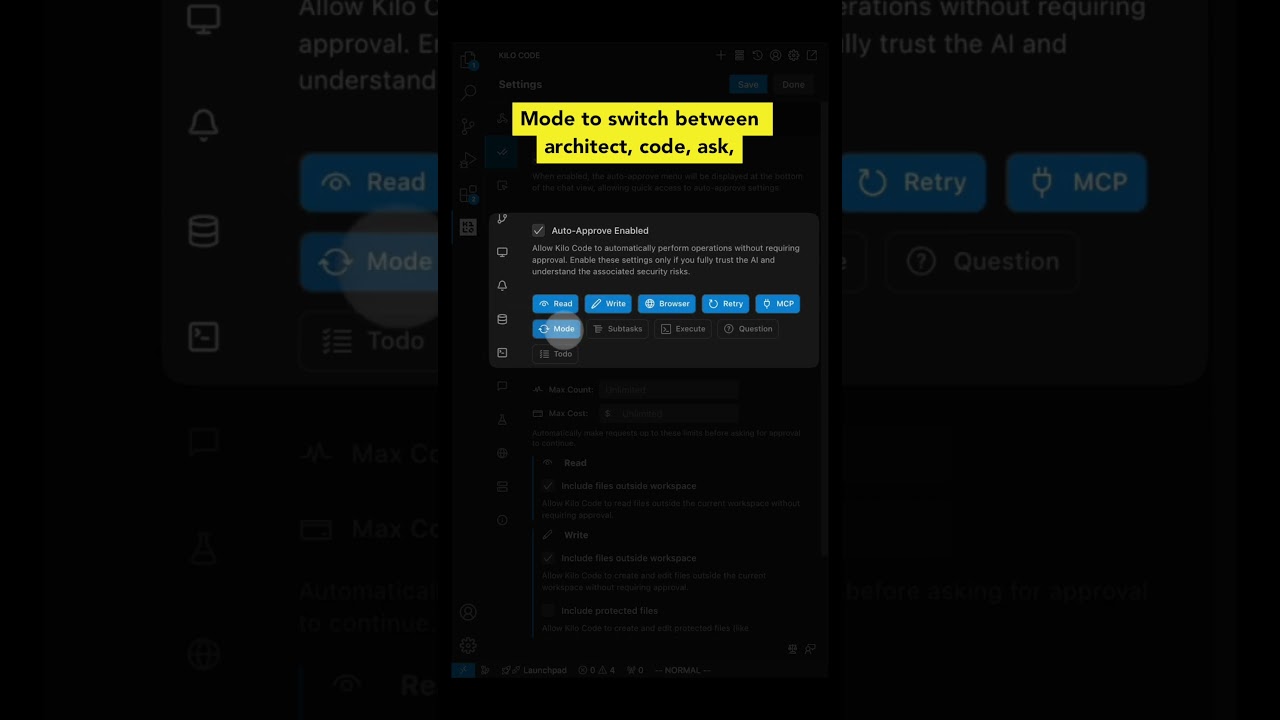
Auto-Approve Toolbar
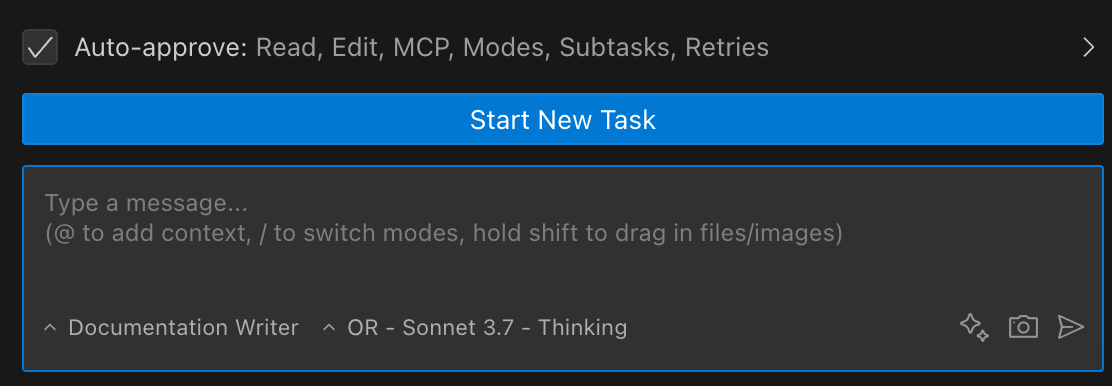
Prompt box and Auto-Approve Toolbar showing enabled permissions
Click the toolbar to expand it and configure individual permissions:
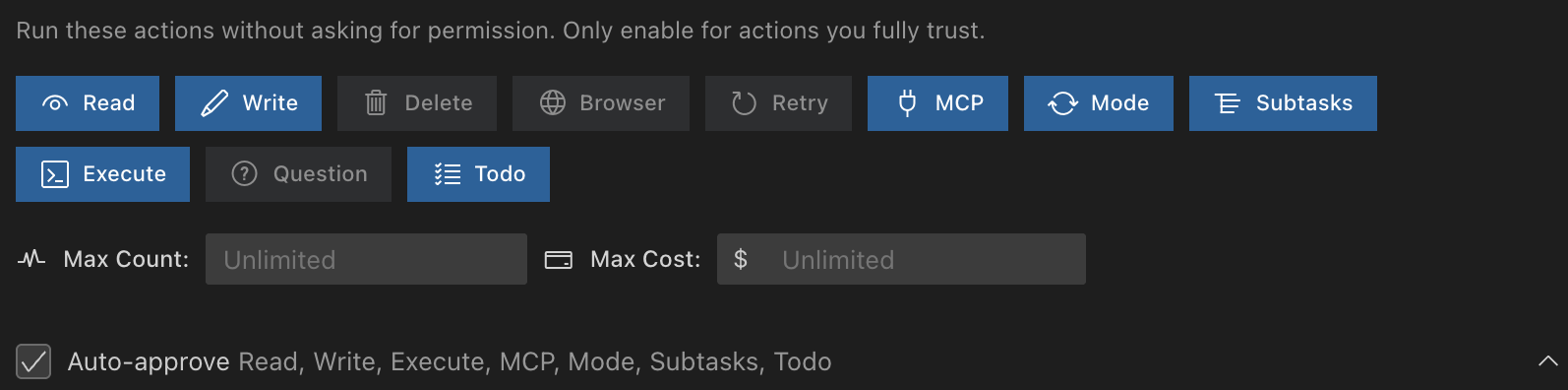
Prompt text box and Expanded toolbar with all options
Available Permissions
| Permission | What it does | Risk level |
|---|---|---|
| Read files and directories | Lets Kilo Code access files without asking | Medium |
| Edit files | Lets Kilo Code modify files without asking | High |
| Execute approved commands | Runs whitelisted terminal commands automatically | High |
| Use the browser | Allows headless browser interaction | Medium |
| Use MCP servers | Lets Kilo Code use configured MCP services | Medium-High |
| Switch modes | Changes between Kilo Code modes automatically | Low |
| Create & complete subtasks | Manages subtasks without confirmation | Low |
| Retry failed requests | Automatically retries failed API requests | Low |
| Answer follow-up questions | Selects default answer for follow-up questions | Low |
| Update todo list | Automatically updates task progress | Low |
Master Toggle for Quick Control
The leftmost checkbox works as a master toggle:

Master toggle (checkbox) controls all auto-approve permissions at once
Use the master toggle when:
- Working in sensitive code (turn off)
- Doing rapid development (turn on)
- Switching between exploration and editing tasks
Advanced Settings Panel
The settings panel provides detailed control with important security context:
Allow Kilo Code to automatically perform operations without requiring approval. Enable these settings only if you fully trust the AI and understand the associated security risks.
To access these settings:
- Click in the top-right corner
- Navigate to Auto-Approve Settings
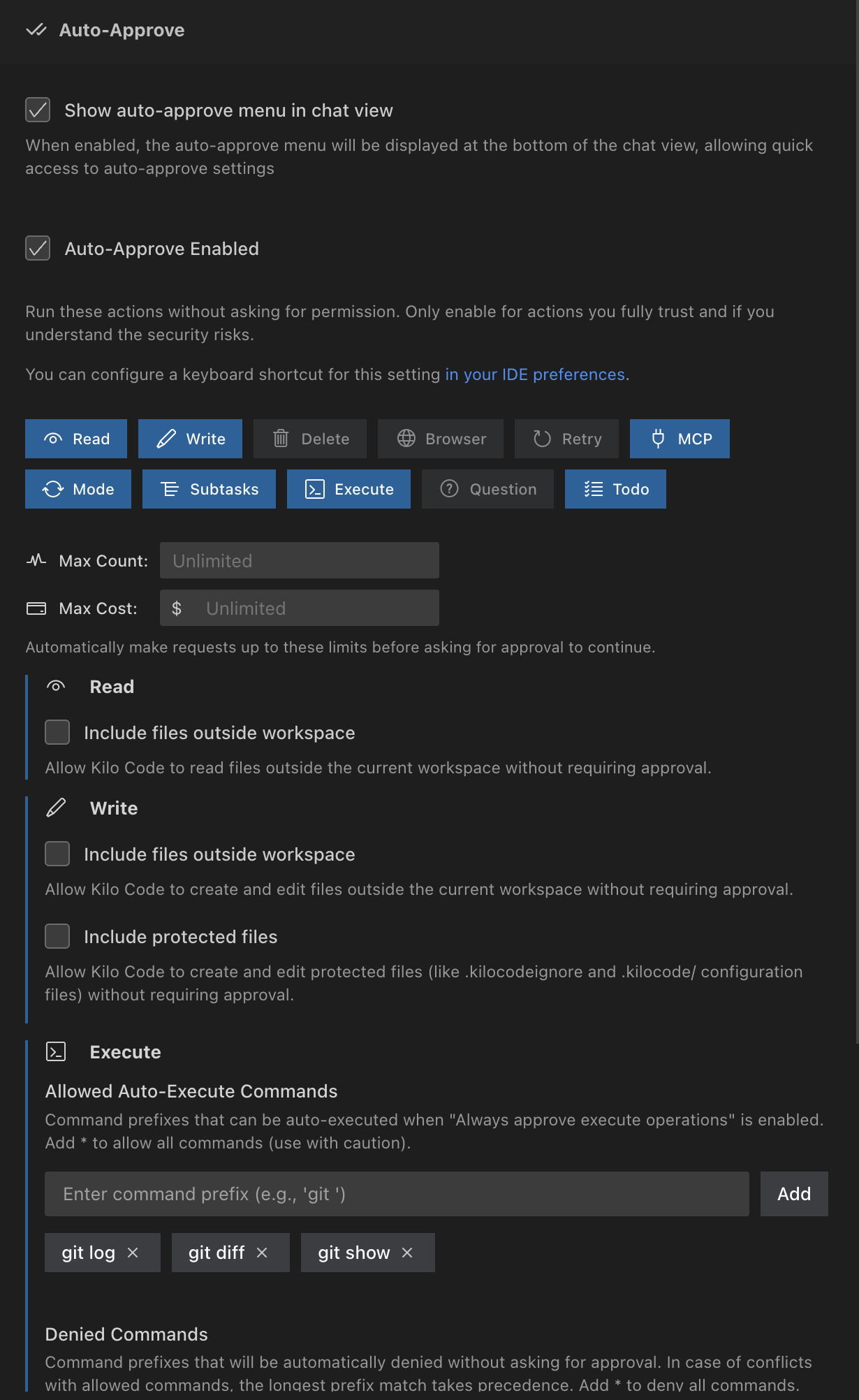
Complete settings panel view
Read Operations

Setting: "Always approve read-only operations"
Description: "When enabled, Kilo Code will automatically view directory contents and read files without requiring you to click the Approve button."
Risk level: Medium
While this setting only allows reading files (not modifying them), it could potentially expose sensitive data. Still recommended as a starting point for most users, but be mindful of what files Kilo Code can access.
Read Outside Workspace
Setting: "Allow reading files outside the workspace"
Description: "When enabled, Kilo Code can read files outside the current workspace directory without asking for approval."
Risk level: Medium-High
This setting extends read permissions beyond your project folder. Consider the security implications:
- Kilo Code could access sensitive files in your home directory
- Configuration files, SSH keys, or credentials could be read
- Only enable if you trust the AI and need it to access external files
Recommendation: Keep disabled unless you specifically need Kilo Code to read files outside your project.
Write Operations

Setting: "Always approve write operations"
Description: "Automatically create and edit files without requiring approval"
Delay slider: "Delay after writes to allow diagnostics to detect potential problems" (Default: 1000ms)
Risk level: High
This setting allows Kilo Code to modify your files without confirmation. The delay timer is crucial:
- Higher values (2000ms+): Recommended for complex projects where diagnostics take longer
- Default (1000ms): Suitable for most projects
- Lower values: Use only when speed is critical and you're in a controlled environment
- Zero: No delay for diagnostics (not recommended for critical code)
Write Outside Workspace
Setting: "Allow writing files outside the workspace"
Description: "When enabled, Kilo Code can create or modify files outside the current workspace directory without asking for approval."
Risk level: Very High
Use with caution and in controlled environments. It allows Kilo Code to:
- Modify your shell configuration files
- Change system configurations
- Write to any location your user has access to
Recommendation: Keep disabled unless absolutely necessary. Even experienced users should avoid this setting.
Write to Protected Files
Setting: "Allow writing to protected files"
Description: "When enabled, Kilo Code can overwrite or modify files that are normally protected by the .kilocodeignore file."
Risk level: Very High
Protected files are intentionally shielded from modification. Enable only if you understand the consequences.
Delete Operations
Setting: "Always approve delete operations"
Description: "Automatically delete files and directories without requiring approval"
Risk level: Very High
This setting allows Kilo Code to permanently remove files without confirmation.
Safeguards:
- Kilo Code still respects
.kilocodeignorerules - Protected files cannot be deleted
- The delete tool shows what will be removed before execution
Recommendation: Enable only in isolated environments or when working with temporary/generated files. Always ensure you have backups, checkpoints, or version control.
Browser Actions

Setting: "Always approve browser actions"
Description: "Automatically perform browser actions without requiring approval"
Note: "Only applies when the model supports computer use"
Risk level: Medium
Allows Kilo Code to control a headless browser without confirmation. This can include:
- Opening websites
- Navigating pages
- Interacting with web elements
Consider the security implications of allowing automated browser access.
API Requests

Setting: "Always retry failed API requests"
Description: "Automatically retry failed API requests when server returns an error response"
Risk level: Low
This setting automatically retries API calls when they fail.
The delay controls how long Kilo Code waits before trying again:
- Longer delays are gentler on API rate limits
- Shorter delays give faster recovery from transient errors
MCP Tools

Setting: "Always approve MCP tools"
Description: "Enable auto-approval of individual MCP tools in the MCP Servers view (requires both this setting and the tool's individual 'Always allow' checkbox)"
Risk level: Medium-High (depends on configured MCP tools)
This setting works in conjunction with individual tool permissions in the MCP Servers view. Both this global setting and the tool-specific permission must be enabled for auto-approval.
Mode Switching

Setting: "Always approve mode switching"
Description: "Automatically switch between different modes without requiring approval"
Risk level: Low
Allows Kilo Code to change between different modes (Code, Architect, etc.) without asking for permission. This primarily affects the AI's behavior rather than system access.
Subtasks

Setting: "Always approve creation & completion of subtasks"
Description: "Allow creation and completion of subtasks without requiring approval"
Risk level: Low
Enables Kilo Code to create and complete subtasks automatically. This relates to workflow organization rather than system access.
Command Execution
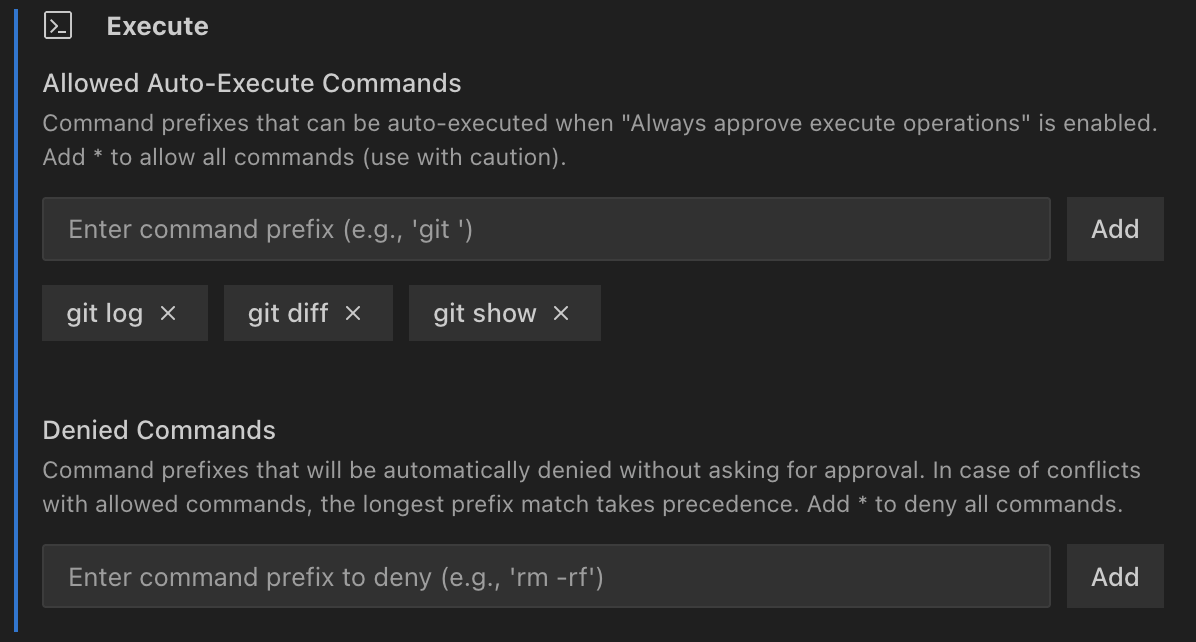
Setting: "Always approve allowed execute operations"
Description: "Automatically execute allowed terminal commands without requiring approval"
Risk level: High
This setting allows terminal command execution with controls. While risky, the allowlist and denylist features limit what commands can run.
- Allowlist specific command prefixes (recommended)
- Never use * wildcard in production or with sensitive data
- Consider security implications of each allowed command
- Consider including potentially dangerous common commands in the deny list
- Always verify commands that interact with external systems
Allowed Commands
Setting: "Command prefixes that can be auto-executed"
Add command prefixes (e.g., git, npm, ls) that Kilo Code can run without asking. Use * to allow all commands (use with caution).
Interface elements:
- Text field to enter command prefixes (e.g., 'git')
- "Add" button to add new prefixes
- Clickable command buttons with X to remove them
Denied Commands
Setting: "Command prefixes that are always blocked"
Commands in this list will never run, even if * is in the allowed list. Use this to create exceptions for potentially dangerous commands.
Follow-Up Questions
Setting: Always default answer for follow-up questions
Description: Automatically selects the first AI-suggested answer for a follow-up question after a configurable timeout. This speeds up your workflow by letting Kilo Code proceed without manual intervention.
Visual countdown: When enabled, a countdown timer appears on the first suggestion button in the chat interface, showing the remaining time before auto-selection. The timer displays seconds remaining (e.g., "3s") and counts down in real-time.
Timeout slider: Use the slider to set the wait time (Range: 1-300 seconds, Default: 60s).
Override options: You can cancel the auto-selection at any time by:
- Clicking a different suggestion
- Editing any suggestion
- Typing your own response
- Clicking the timer to pause it
Risk level: Low
Use cases:
- Overnight runs where you want Kilo Code to continue working
- Repetitive tasks where the default suggestions are usually correct
- Testing workflows where interaction isn't critical
Update Todo List
Setting: "Always approve todo list updates"
Description: "Automatically update the to-do list without requiring approval"
Risk level: Low
This setting allows Kilo Code to automatically update task progress and todo lists during work sessions. This includes:
- Marking tasks as completed
- Adding new discovered tasks
- Updating task status (pending, in progress, completed)
- Reorganizing task priorities
Use cases:
- Long-running development sessions
- Multi-step refactoring projects
- Complex debugging workflows
- Feature implementation with many subtasks
This is particularly useful when combined with the Subtasks permission, as it allows Kilo Code to maintain a complete picture of project progress without constant approval requests.
YOLO Mode
"You Only Live Once" mode enables all auto-approve permissions at once using the master toggle. This gives Kilo Code complete autonomy to read files, write code, execute commands, and perform any operation without asking for permission.
You can optionally enable an AI Safety Gatekeeper, which reviews every intended change in YOLO mode and intelligently approves or blocks actions before they execute. We suggest using a small, fast model such as OpenAI gpt-oss-safeguard-20b. When enabled, AI Safety Gatekeeper will incur additional costs, as well as additional latency.
When to use:
- Rapid prototyping in isolated environments
- Trusted, low-stakes projects
- When you want maximum AI autonomy
When NOT to use:
- Production code or sensitive projects
- Working with important data
- Any situation where mistakes could be costly
This is the fastest way to work with Kilo Code, but also the riskiest. Use it only when you fully trust the AI and are prepared for the consequences.